Keystone Daily Planner
Your week, your goals, and your people in one app.
Why Keystone Is Different
Buitl by a returned missionary that wanted the same structure at home. Most productivity apps make you choose: a calendar app that ignores your goals, a habit tracker that doesn't know your schedule, or a personal CRM that lives nowhere near either. Keystone puts all of them together, where they actually belong, next to each other, because that's how a real day works.
Keystone Pro
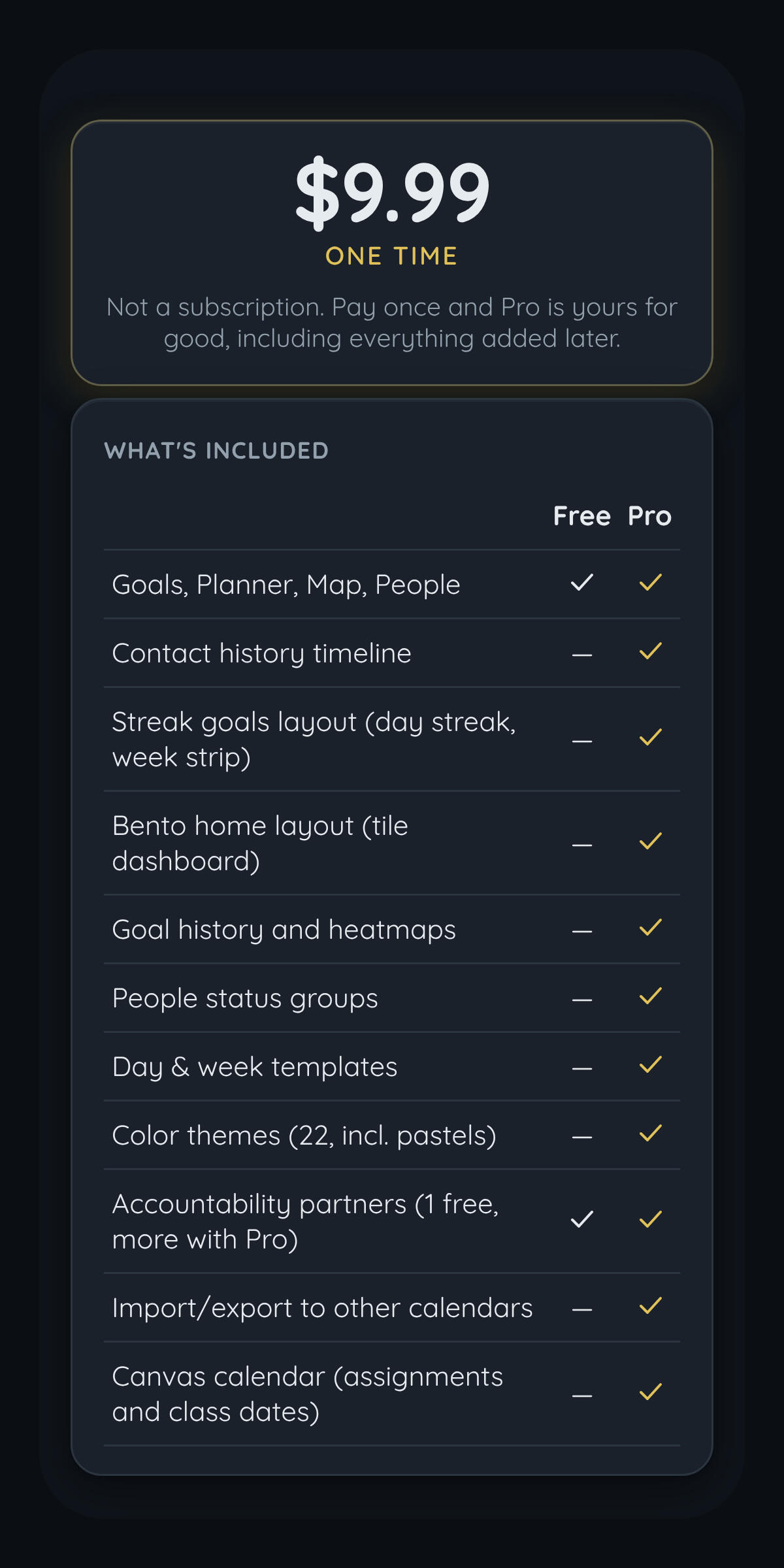
Keystone is 100% free to use and ad free, but Keystone Pro is a great way to help support development and get access to a bunch of other cool features.
More Customization
With 22 different color themes, app layout customization, custom event types, and more, you can make Keystone uniquely yours.
See the full picture
A timeline for every person, goal history with trends, and people status groups.
Bring your calendar in
import and export, day and week templates, and Canvas linking for students.
Keystone Pro
A one time, life-time purchase to both increase your productivity, but also support our development of new features. Which you will always have access to!
Keystone Pro
$9.99
Join The Waitlist!
Be the first to know when Keystone is available to download!
Or Follow Us Online
Contact us through Email, Instagram, or Facebook to suggest new features or provide feedback!
All rights reserved
Terms of Service
Last updated October 28, 2026Keystone is made by KeyStone Software (“we”, “us”). These terms cover your use of the Keystone app and its website. By using Keystone you agree to them. If you do not agree, please do not use Keystone.The serviceKeystone is a personal calendar, goals and people app. The core features are free. Pro is an optional one-time purchase that unlocks the extra features listed on the pricing page. It is not a subscription, and there is nothing to cancel.Keystone may be offered in test or pre-release versions, which can have bugs or change quickly. Features can be added, changed or removed over time, and some features need an internet connection or an account.Who can use itYou must be at least 13 years old to use Keystone. If your local law sets an older age for using online services, you must meet that age.AccountsAn account is only needed for cloud sync, shared calendars, accountability partners and buying Pro. You are responsible for keeping your sign-in details secure and for what happens under your account. Tell us promptly if you think someone else has used it.PurchasesPro is billed once, through Google Play or the App Store, depending on where you bought it. It unlocks the Pro features for you for as long as Keystone is offered. Refunds follow the policy of that store. If a purchase fails or is reversed by the store, Pro may be switched off for your account.Your contentYou own what you put into Keystone: your events, goals, notes and contacts. You are responsible for it, including information about other people, such as a contact’s phone number or address. Only add information you have the right to keep. We do not claim ownership of your content, and you give us only the limited permission needed to store and sync it for you when you use the optional server features.Acceptable useDo not use Keystone, including shared calendars, accountability invites and other sharing features, to harass, spam or contact anyone who has not agreed to it. Do not try to break, overload or gain unauthorized access to Keystone or its servers, copy or resell it, or use it to break the law or other people’s rights.Other servicesKeystone can connect to services we do not run, such as Google, Canvas, OpenStreetMap, Esri and your phone’s calendar and contacts. Your use of them is governed by their own terms. Keystone is not made by, endorsed by or affiliated with Google, Instructure (Canvas), Apple, any school or any other company named in the app. Names and marks belong to their owners.Reminders and information are estimatesReminders, travel-time warnings, route suggestions, streaks and other prompts are there to help you plan. They are not guarantees. Notifications can be delayed or blocked by your phone’s settings. Check anything time-sensitive, safety-related, medical, legal or financial yourself. Keep your own copy of anything important, and use the backup feature.Ending your useYou can stop using Keystone at any time and delete your account from Settings → Account. We may suspend or end access for use that breaks these terms, such as abusing the sharing or invite features, or if we need to for security or legal reasons. If we discontinue Keystone, we will give reasonable notice where we can.DisclaimerKeystone is provided “as is” and “as available”. To the fullest extent the law allows, we do not promise that it will be error-free, always available or free from data loss, and we disclaim all other warranties, including fitness for a particular purpose.Limit of liabilityTo the fullest extent the law allows, we are not liable for indirect, incidental, special or consequential damages, or for lost data, profits or opportunities, arising from your use of Keystone. Our total liability to you for any claim is limited to the amount you paid us for Keystone in the 12 months before the claim, or $10 if you paid nothing. Some places do not allow these limits, so they may not apply to you. Nothing in these terms limits rights you have under the law that cannot be waived.Governing lawThese terms are governed by the laws that apply where KeyStone Software is based, without regard to conflict-of-laws rules.Changes to these termsIf these terms change in a material way, we will update the date above and tell you in the app. Using Keystone after a change means you accept the new terms.ContactQuestions about these terms can go to [email protected].
Privacy Policy
Last updated October 28, 2026Keystone is made by KeyStone Software (“we”, “us”). It is built around one idea: your calendar, your goals and your people are your data, and they stay on your device by default. This page explains what Keystone collects, when anything leaves your device, who else sees it, and how to delete it.The short version
You can use Keystone’s free features without an account. In that case nothing you enter is sent to us.
We do not run ads, we do not use analytics or third-party trackers, and we do not sell your data.
A few optional features send data off your device. Each one is listed below, with what it sends and why.
You can delete your data on your phone, and your account and everything stored for it, at any time.
What stays on your deviceEverything you enter (events, goals, tasks, notes, contacts, map pins and settings) is stored on your device. Keystone works fully offline, and none of this is sent anywhere unless you turn on one of the optional features below.If you turn on automatic backups, or export a backup by hand from Settings → Your data, Keystone saves a copy of your data as a file in your device’s Documents folder, outside the app’s private storage. Backups are locked with a password you choose. That file is visible to other apps on your device that have file access, and it never leaves your device unless you move it yourself.A few features keep small working copies on your device so they can do their job. None of them send anything on their own:Home screen widget (Android). The widget shows the next few things in your day. To draw it, Keystone saves a short summary (the titles and times of those items) in the app’s private storage. Those titles appear on your home screen, so anyone who can see your unlocked screen can read them. Remove the widget if you would rather they did not.
Reminders and notification buttons. Reminders are scheduled on your device and appear in your notifications with the title of the goal, event or task, which can show on a lock screen depending on your phone’s settings. Buttons such as Done and Snooze act on the data on your device.
Share into Keystone (Android). When you share text, a link or an address from another app to Keystone, it is handled on your device and saved as a task, note or pin only if you choose.
Weekly review and check-ins. The weekly review and the check-in after an event are worked out on your device from your own goals, tasks, events and contacts. Their reminders are local notifications.
Usage counts and recovery copies. “Your week in Keystone” counts how often you used the app and stays on your phone. If cloud sync is on, Keystone also keeps a copy of the last synced version, and one copy from before a merge, in the app’s private storage, so a sync can be undone by hand if something goes wrong.
What can leave your device, and whyEach of these is optional.An account. Signing in creates an account through our sign-in provider, Clerk, which stores your email address. You do not need an account to use the free features.
Cloud sync (Pro). If you turn this on, your app data (events, goals, tasks, notes, contacts including photos and addresses, map pins and most settings) is stored on our server so it can follow you to another device. When two of your devices have both changed something, your phone combines the changes. The server keeps one copy and does not read or merge it. Settings that belong to one device, such as your haptics choice and your Pro status, are not synced. The data is sent over an encrypted connection and kept until you delete your account. It is not end-to-end encrypted, so we and our hosting provider are able to see it. It can be switched off in Settings → Account and sync.
Accountability partners. If you invite someone, or accept an invite, to be accountability partners, Keystone shares with that one person, and only them, your goal titles and progress and how many of today’s tasks are done (not the tasks themselves). Your email address is visible to them. Nothing is shared until they accept. It is removed from our server when you remove your last partner, and either of you can end it at any time.
Shared calendars (Pro for more than a few). If you create or join a shared calendar, the events on that calendar are visible to the people on it. Nothing else in your data is shared.
Location. Keystone only uses your device’s location when you use a location feature: dropping a pin, using “Use my location”, showing your position on the map, or an arrival reminder you set up. It does not track your location in the background beyond what an arrival reminder you set up needs. Your position stays on your device.
Map tiles and address search. The map loads map pictures from OpenStreetMap and, for the satellite and gray styles, from Esri. Searching the map or entering an address sends the search text to OpenStreetMap’s Nominatim service to find coordinates. These requests go straight from your device to those services, not through our server, and they can see your IP address and the area you are viewing. We do not control what they do with that traffic. See their own privacy policies.
Google Calendar and Contacts (Pro). If you connect Google in Settings, Keystone asks for read and write access to your Google Calendar and read-only access to your Google Contacts. Contacts are a one-time import into your local data. The calendar is kept in step while the app is open: single (non-repeating) events you create, edit or delete in Keystone are pushed to Google Calendar, and changes made on Google are pulled in. This only happens while Keystone is open. Our server holds a Google-issued token to do this until you tap Disconnect, which also revokes it. Keystone’s use of information received from Google APIs follows the Google API Services User Data Policy (https://developers.google.com/terms/api-services-user-data-policy), including the Limited Use requirements: the data is used only to show and sync your own events and contacts, is never used for advertising, and is never sold or shared with anyone other than you.
Your phone’s contacts. If you tap Import from phone, Android asks for permission to read your contacts. Keystone reads them on the device to show you a list and copies only the ones you tick (name, phone number, email and address) into your Keystone data. It never writes to your phone’s contacts, and the permission is not used for anything else.
Your phone’s calendar. If you tap Import from phone calendar, Android asks for permission to read your calendar. Keystone lists your calendars on the device and copies the events from the ones you choose (title, date and time, location and notes) into your Keystone calendar. It never changes your phone’s calendar, and the permission is not used for anything else. Keystone remembers which calendars and date range you picked, on your device only.
Canvas calendar (Pro). If you paste your Canvas Calendar Feed link into Settings, Keystone fetches it directly from your school’s Canvas site, from your phone, to show your assignments and class dates on your calendar. The link stays on your device and is never sent to our server or included in backups or sync. The items it brings in become ordinary events in your data, so they are included in a backup or cloud sync if you use those. Disconnecting removes the link and the items it added. Keystone is not made by or affiliated with Instructure or your school.
Links you tap. Links in your notes open in your browser or another app on your phone. A Canvas link tries the Canvas Student app first if it is installed. Those apps and websites have their own privacy practices. Keystone does not send them anything but the link.
Payment (Pro). Payment is handled entirely by Google Play (or the App Store). Keystone never sees your card details. When you buy Pro, our server confirms the purchase with Google and records that Pro was bought, along with the transaction identifier.
Feedback. “Send feedback” opens your email app with a draft. Nothing is sent until you send it.
Who else sees itWe use a small number of service providers: Clerk for sign-in, Google (Play purchase checks, and Calendar and Contacts if you connect them), OpenStreetMap and Esri for map pictures and address search, and a hosting provider for the optional sync server. Each one sees only what its job needs. Clerk sees your email. Google sees the access you granted. OpenStreetMap and Esri see the map area or address text you request. The sync server sees your data only if cloud sync is on. None of them may use your data for their own purposes. We do not sell your data and we do not show ads.Where your data is kept and for how longData on your phone stays there until you delete it. If you use the optional server features, data is stored on servers run by our hosting provider, which may be in a different country from you, until you delete your account or turn the feature off and remove the data. After an account is deleted, copies can remain in the provider’s routine backups for a short time before they are overwritten.SecurityData sent to our server is encrypted in transit. Backups you create are encrypted with the password you choose, and we cannot recover that password for you. On your phone, your data is protected by Android and by your phone’s lock screen. No system is perfectly secure, so keep your phone locked and your backup password safe.Your data, your control
Delete individual events, goals, contacts or notes at any time in the app.
Disconnect Google at any time from Settings. This revokes its access on Google’s side and deletes the stored token. It does not remove events or contacts you already imported, which is a separate step on your device.
Clear all local data from Settings → Your data. This resets the app on that device.
Delete your account from Settings → Account. This permanently removes your account, your Pro purchase record, and everything stored on our server for it (synced data and shared calendars you own). It does not touch data already saved on your device. You can also email us to request deletion if you cannot sign in.
Depending on where you live (for example the EU, the UK or California), you may have rights to access, correct, delete or export your personal data. Most of that you can do yourself in the app. For anything else, email us and we will respond. We do not sell or share your personal information for advertising.
Children’s privacyKeystone is not directed at children under 13, and we do not knowingly collect personal information from them. If you believe a child has given us personal information, email us and we will delete it.Changes to this policyIf this policy changes in a way that affects what we collect or how we use it, we will update the date above and, for material changes, tell you in the app.ContactQuestions about this policy or your data can go to [email protected].
The Home Page
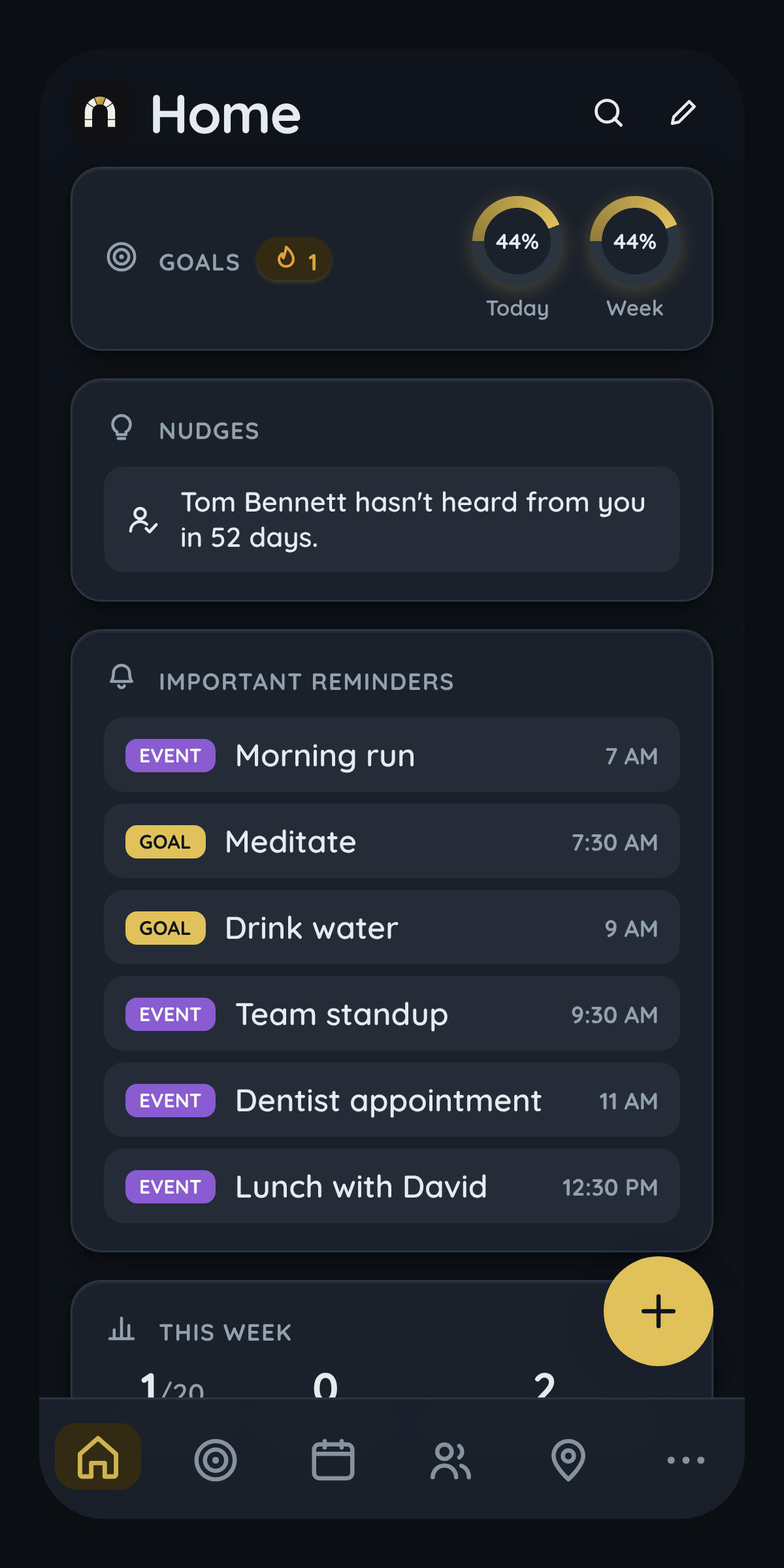
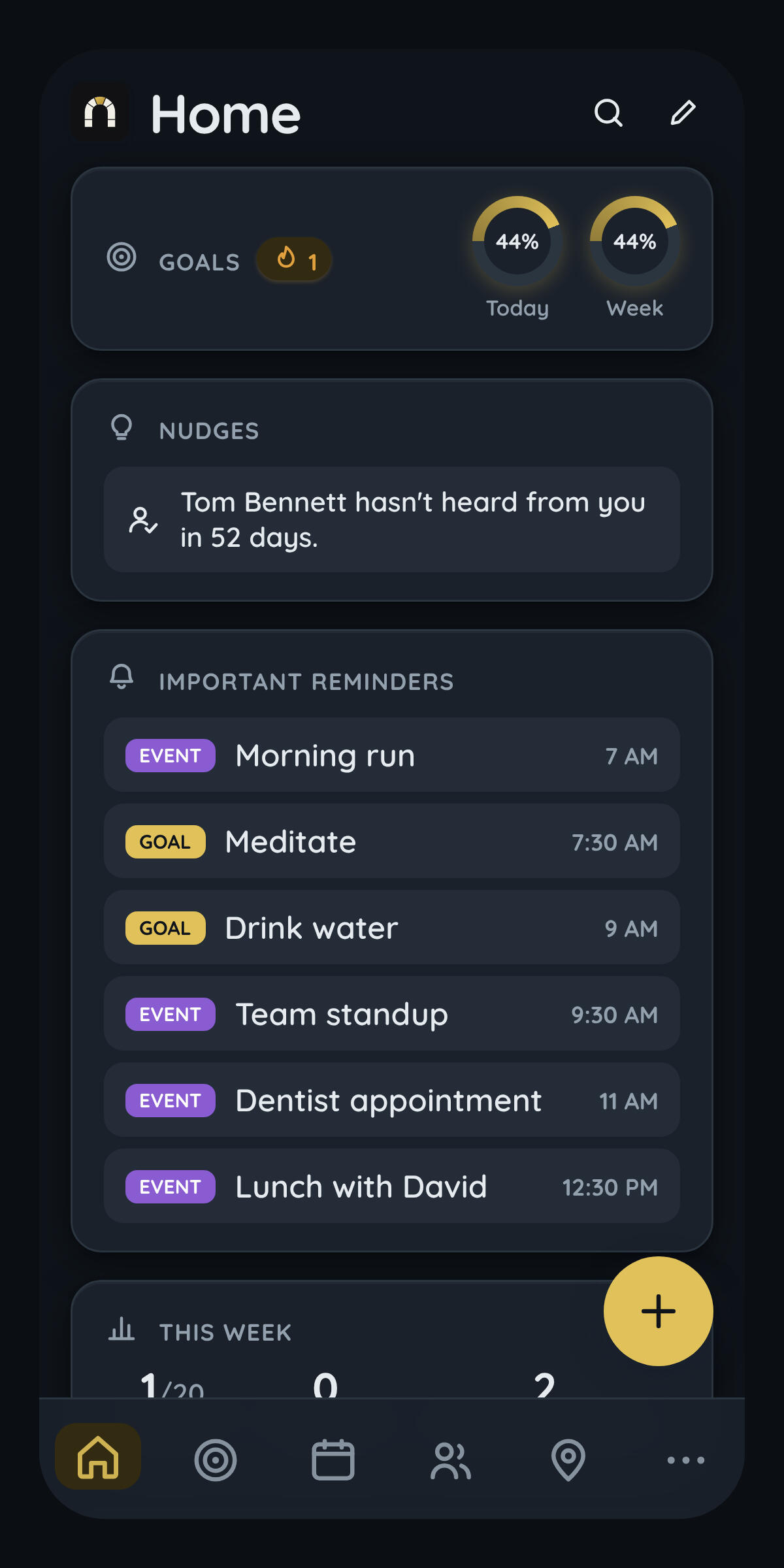
Home is the answer to "what does today actually look like", the one screen you land on, not one of seven you have to check. It pulls together your goals' progress for today and this week, gentle nudges about people you haven't reached out to in a while, your most important reminders (events and tasks that matter most, not everything at once), a weekly recap of goals hit and people reconnected with, and your open task list, all in a glance, before you've tapped into a single other tab.
Goals
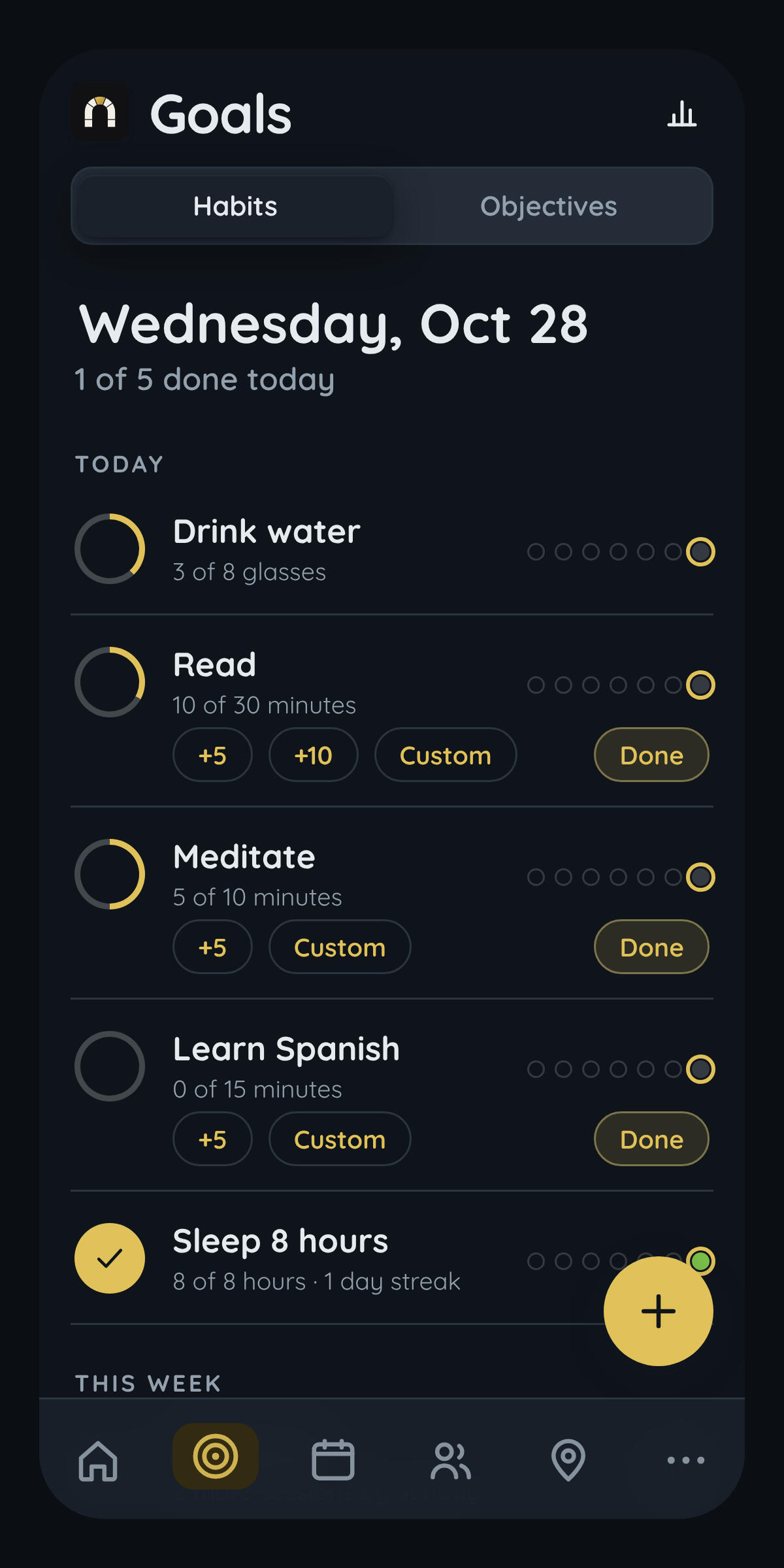
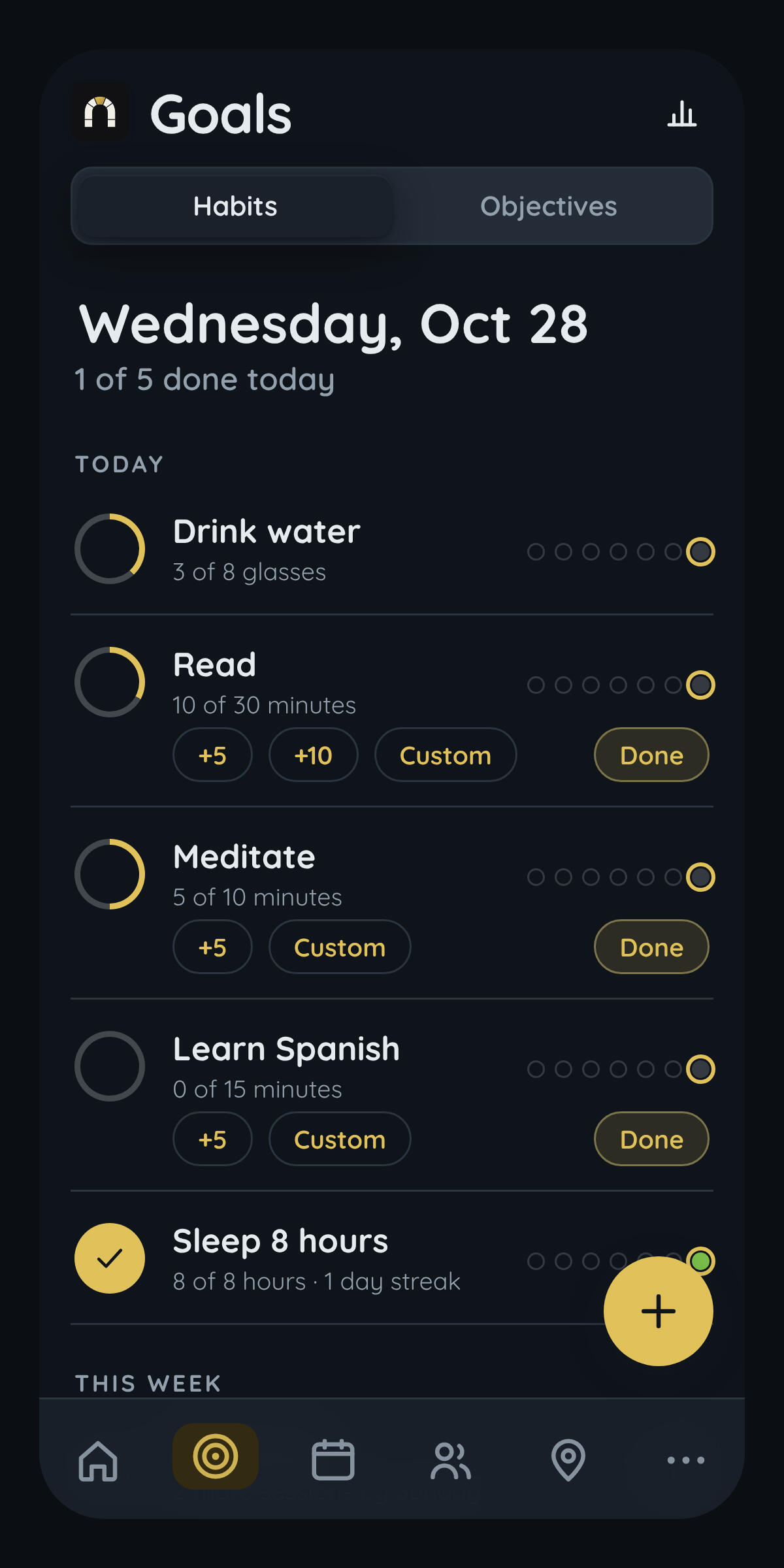
Goals covers two different kinds of progress on purpose, because "get better at something" and "hit a big target" aren't the same shape of problem. Habits are the daily and weekly stuff ,drink water, read, work out, tracked with streaks, and streak freezes so one missed day doesn't quietly erase three weeks of consistency. Objectives are the bigger picture: quarterly or annual targets broken into concrete milestones, the kind of thing a daily habit alone doesn't capture ("get in shape" isn't a checkbox, but "run a 10k without stopping" is).
Calendar
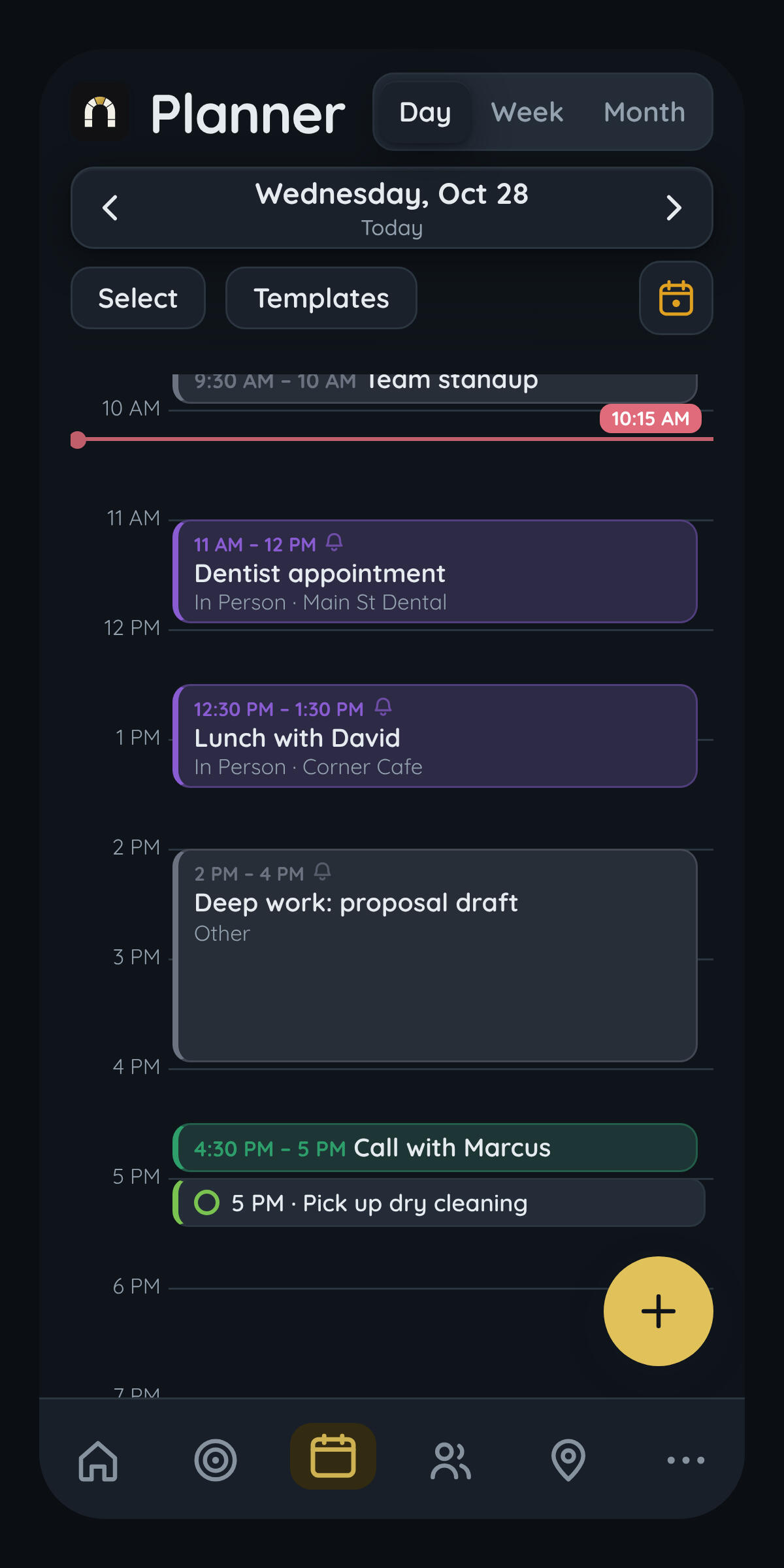
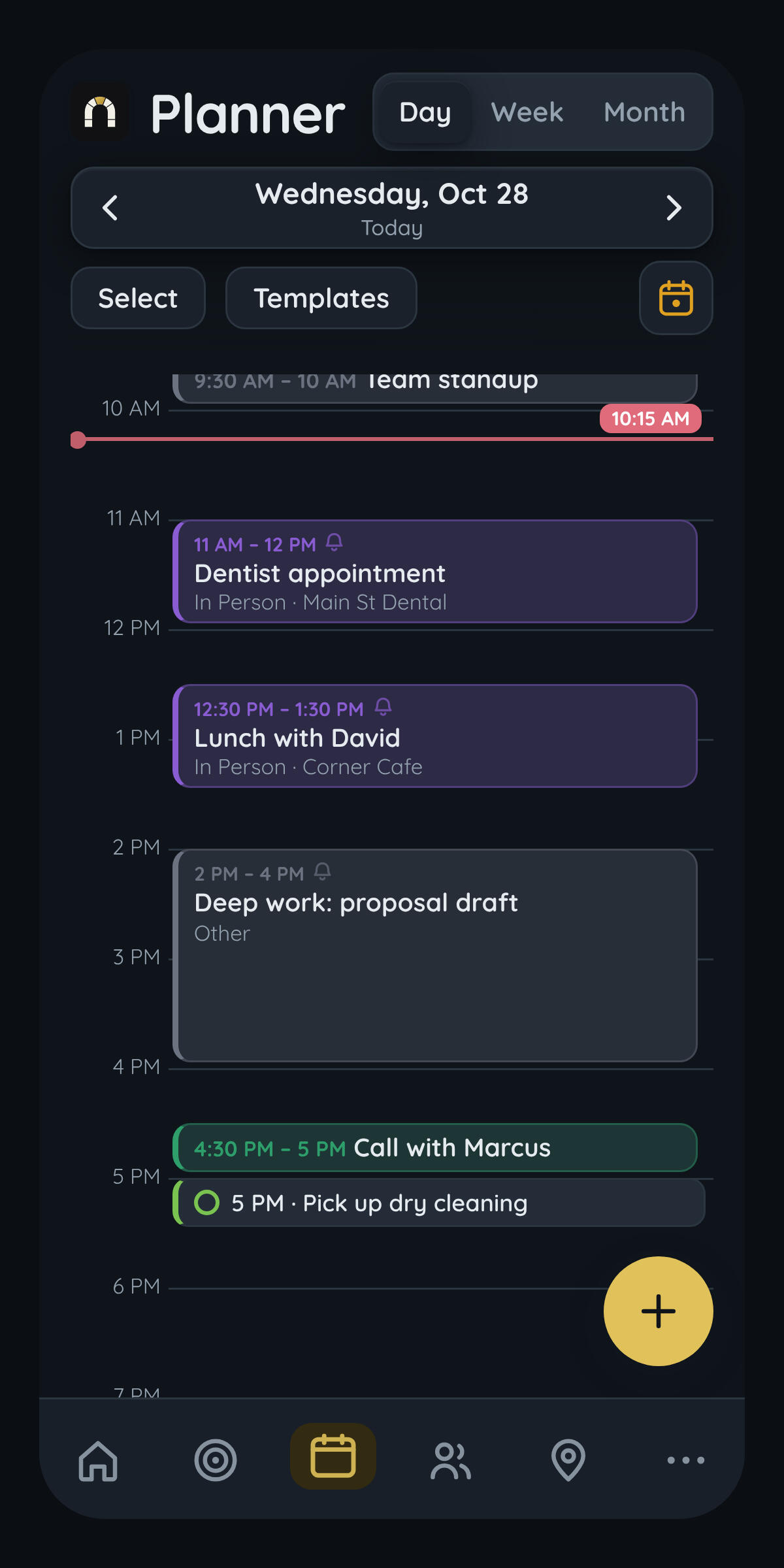
The day timeline is where the actual scheduling happens: an hour-by-hour view you build your day in directly, not just glance at. Events are draggable blocks, grab one and move it to a new time, resize it by dragging an edge, or select several at once and shift them all together. Tap any empty slot to create something new right there, at the time you tapped, instead of opening a form and typing a time by hand.
Contacts
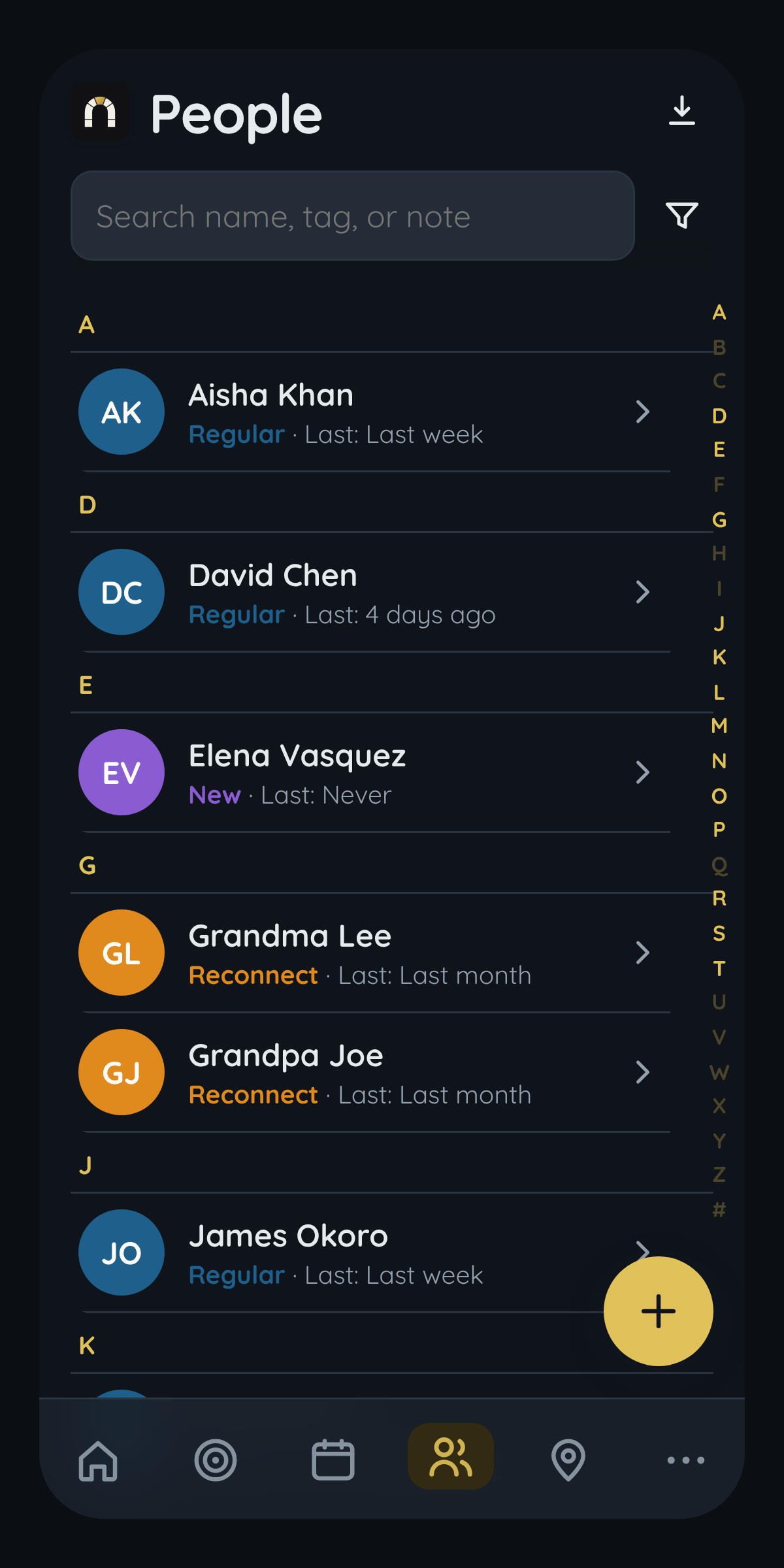
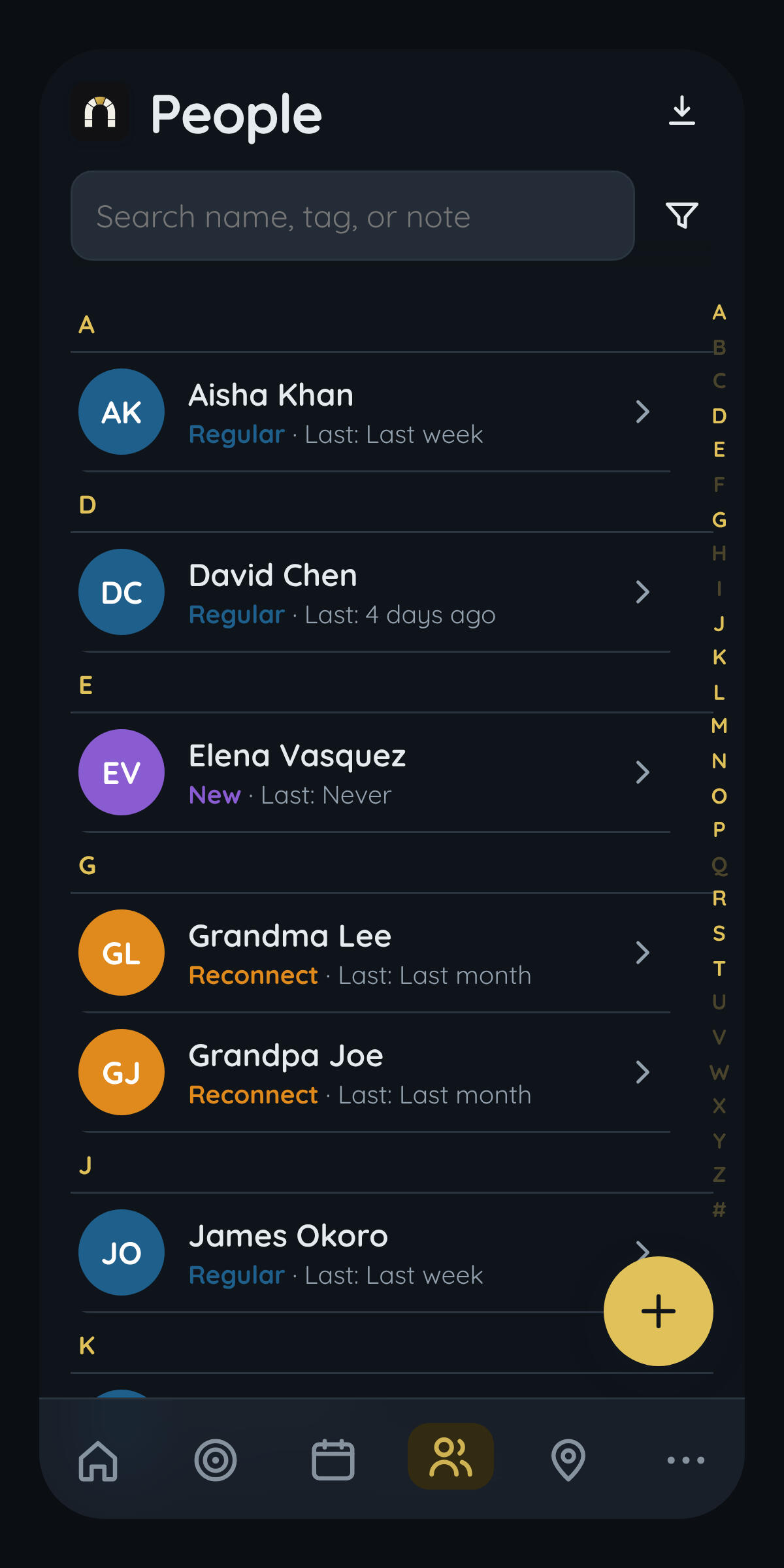
The Contacts list is a personal CRM, but built for a different job than a sales one: it's not tracking deals, it's answering "who have I been neglecting." People are sorted and tagged by status, close, regular, reconnect, new, and the ones you're overdue to reach out to are the ones that surface, not just an alphabetical wall of names you have to scroll past to find who actually needs attention.
Maps
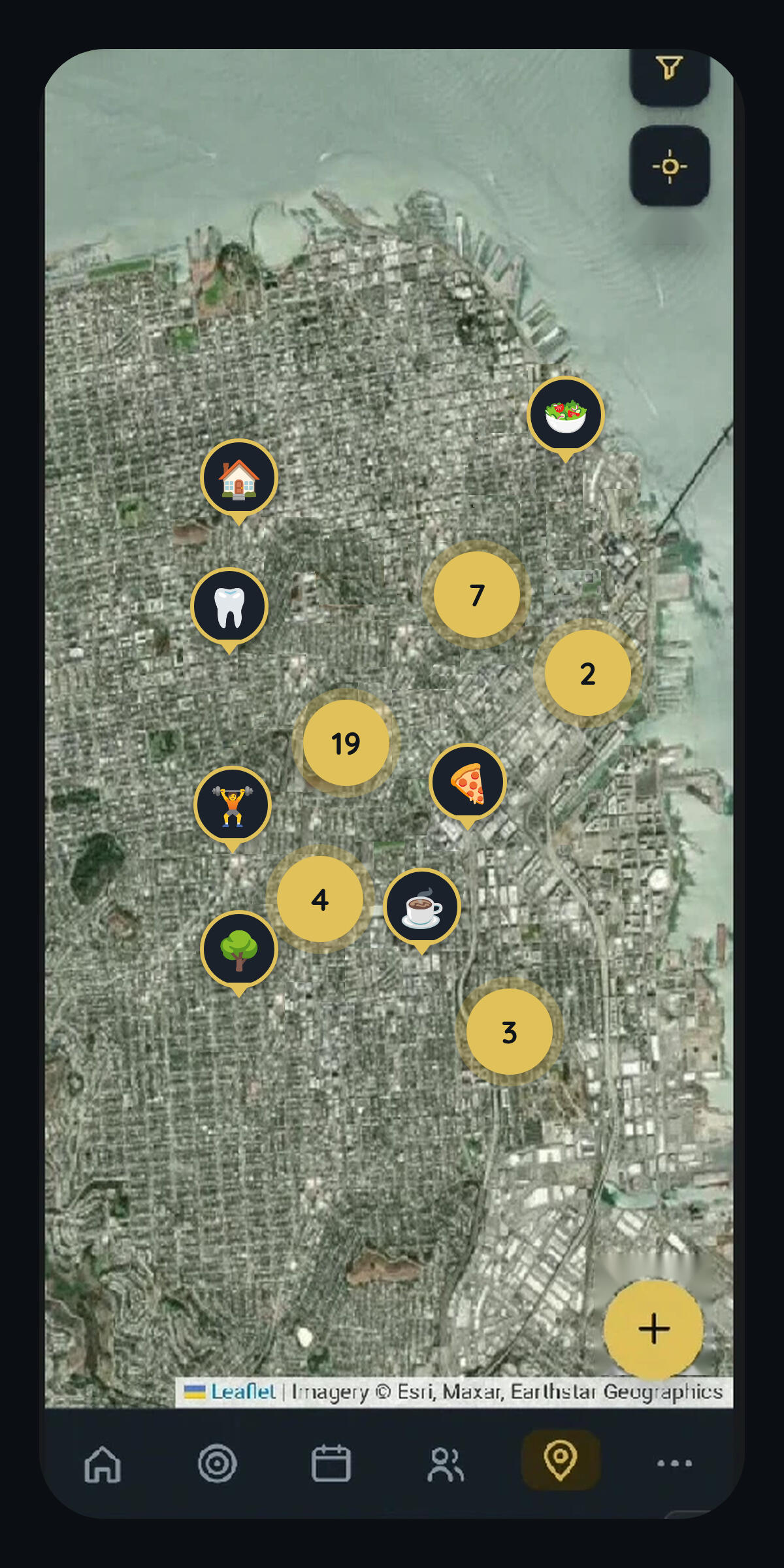
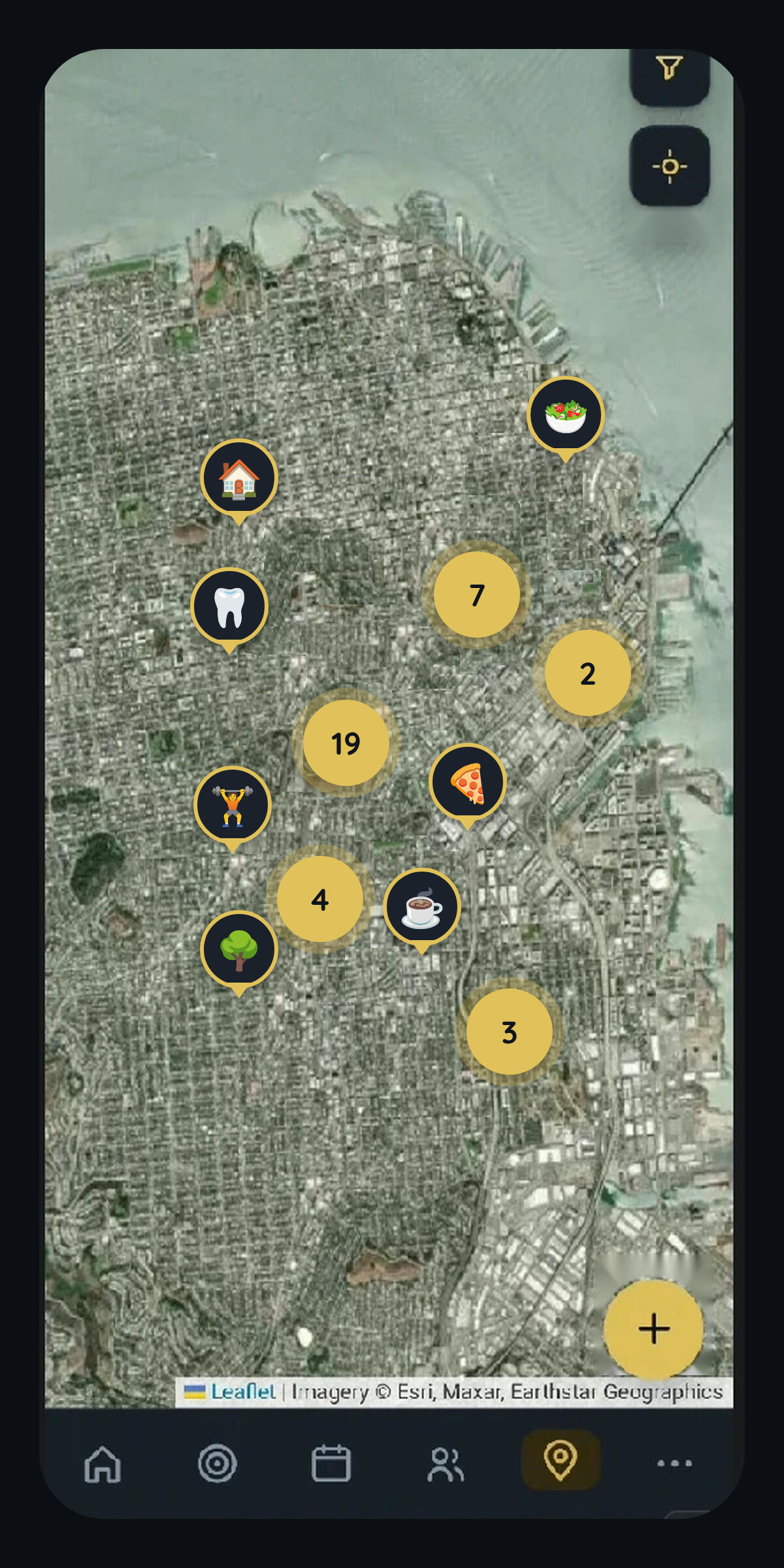
The map holds the physical side of your life ,pins for home, work, a friend's place, the gym, and ties them to the people and events they belong to. A contact's address becomes a pin automatically; an event with a location shows up on the same map. It's there because "when" isn't the only axis a schedule runs on, "where" matters just as much, and most calendar apps treat it as an afterthought typed into a text field nobody ever looks at again.Pins carry their own notes too (the gate code, which entrance to use, what parking is like), small details that are easy to forget between visits and inconvenient to dig up from a text thread when you actually need them.
Settings
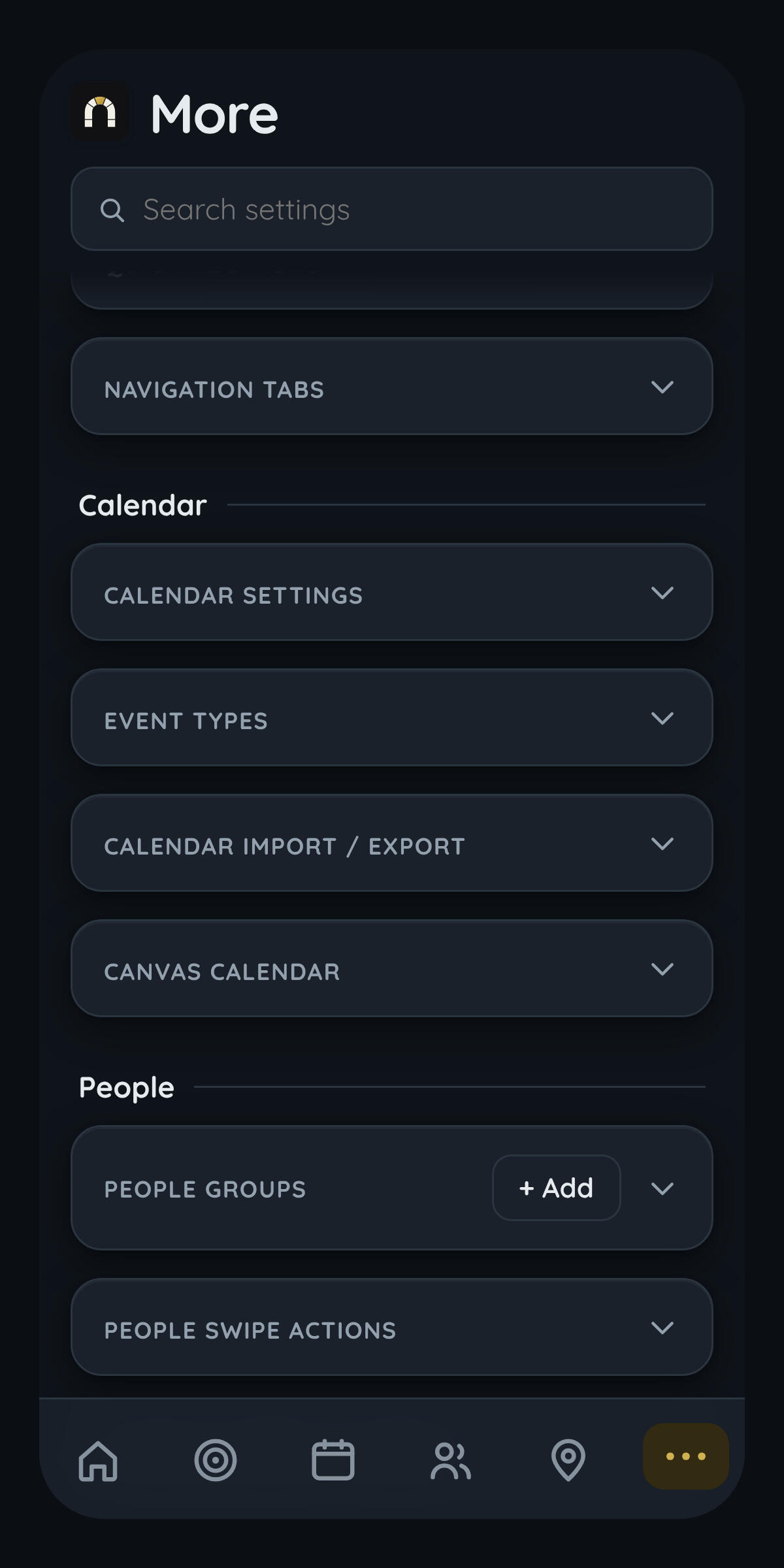
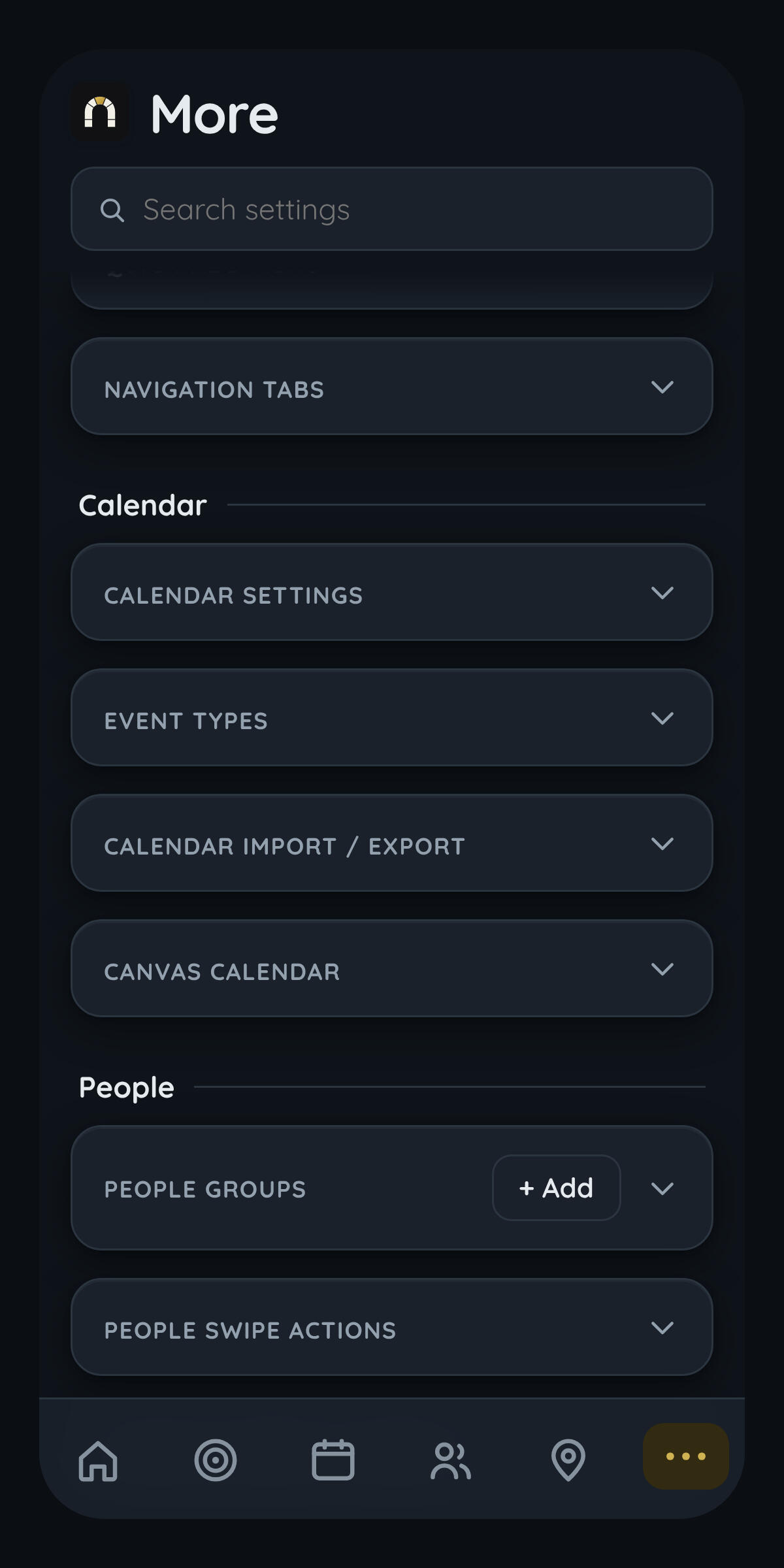
This is the control room: account and cloud sync, appearance and color themes, calendar behavior (week start day, default event length, timeline hours), notification preferences, and data management, all gathered in one place instead of scattered across every page they touch. It's deliberately not the page you live in day to day — it's the page that exists so the pages you do live in can stay uncluttered, with their configuration living somewhere else entirely.It's also where the app's customization actually lives: reordering the home screen, choosing what's in the quick-add menu, picking which tabs show in the bottom navigation. The philosophy is that a genuinely personal productivity app has to be adjustable, and adjustability needs a dedicated home so it doesn't turn every other screen into a settings panel.